Submitting content via AWS CLI
Last updated: October 14, 2025
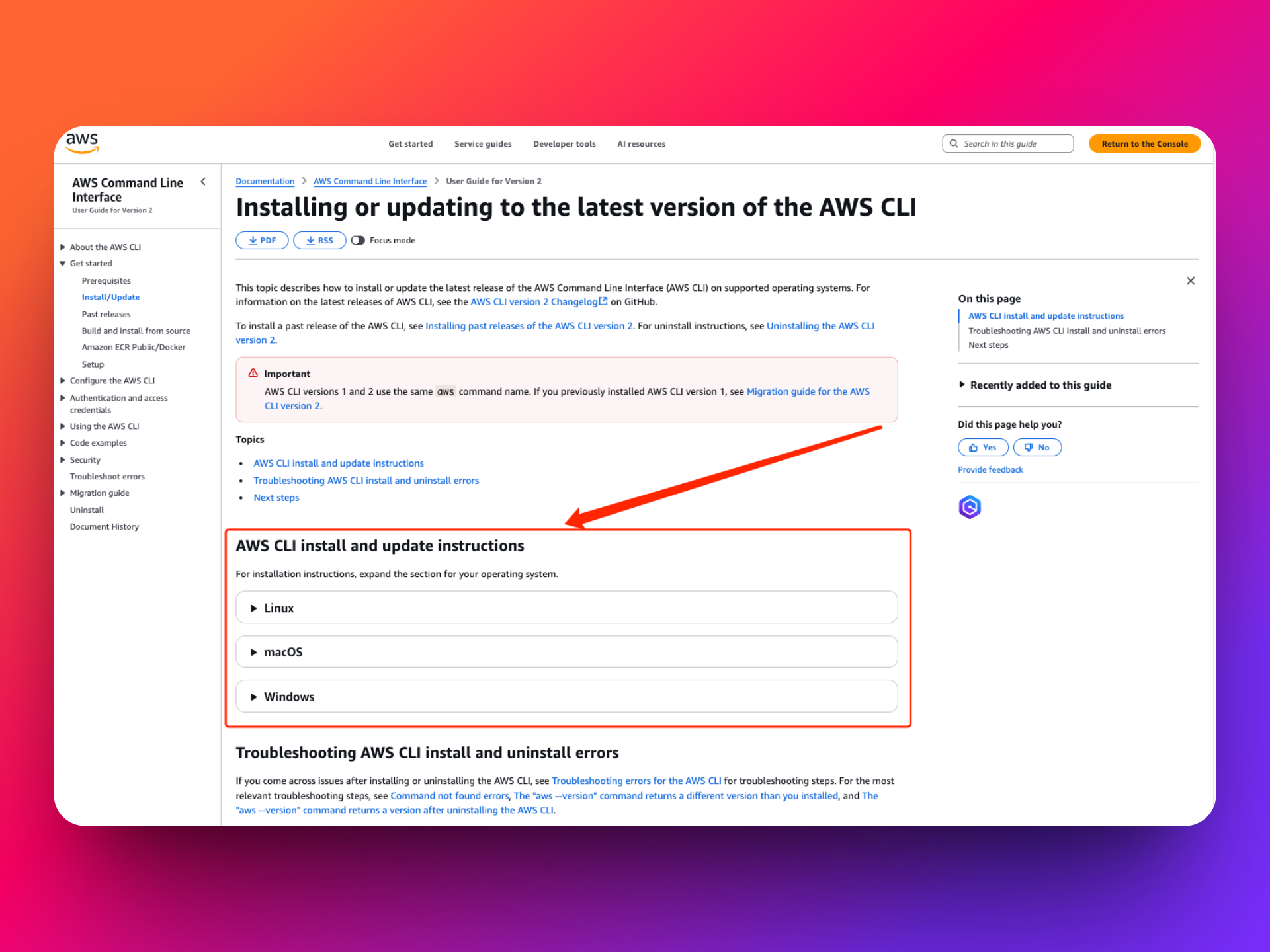
Step 1: Download the AWS CLI
Find instructions here.
Different instructions for Windows vs Mac vs Linux are available.
Step 2: Open up Command Prompt or Powershell (Windows) or Terminal (Mac)
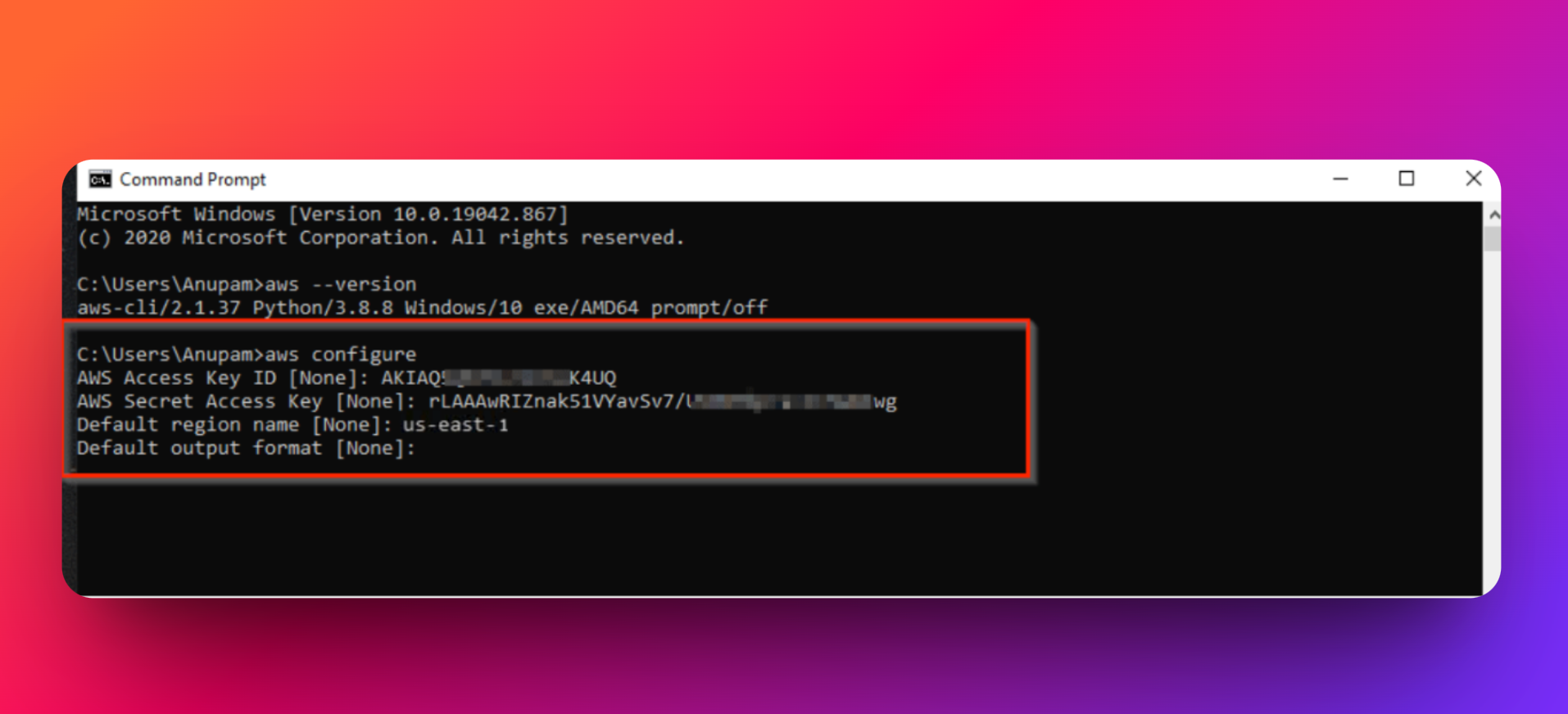
Step 3: Configure the AWS CLI by using the command aws configure
If you get an error message “command not found,” try Troubleshooting command not found errors.
This command asks for your public key, secret, default region name (us-east-1) and output format (for output format just hit enter, don’t input anything there)
Step 4: Copy the files using:
aws s3 cp /path/to/local/directory/ s3://troveo-your-bucket-name/folder_name_here/ --recursive
This will copy the files to the folder folder_name_here on the bucket troveo-your-bucket-name that we can then intake into our video processing pipeline.
This may take hours or days, depending on how many files you have. Troveo recommends leaving your computer power plugged in and disabling screen savers.