How to connect to your Troveo S3 bucket
Last updated: February 12, 2026
This guide describes how to connect to Troveo’s S3 bucket using third-party clients such as Cyberduck. It outlines the process for authenticating, browsing available directories, and uploading video content. The objective is to provide licensors and their teams with a reliable way to transfer files while ensuring that uploaded files remain visible for verification and management.
Steps for authentication:
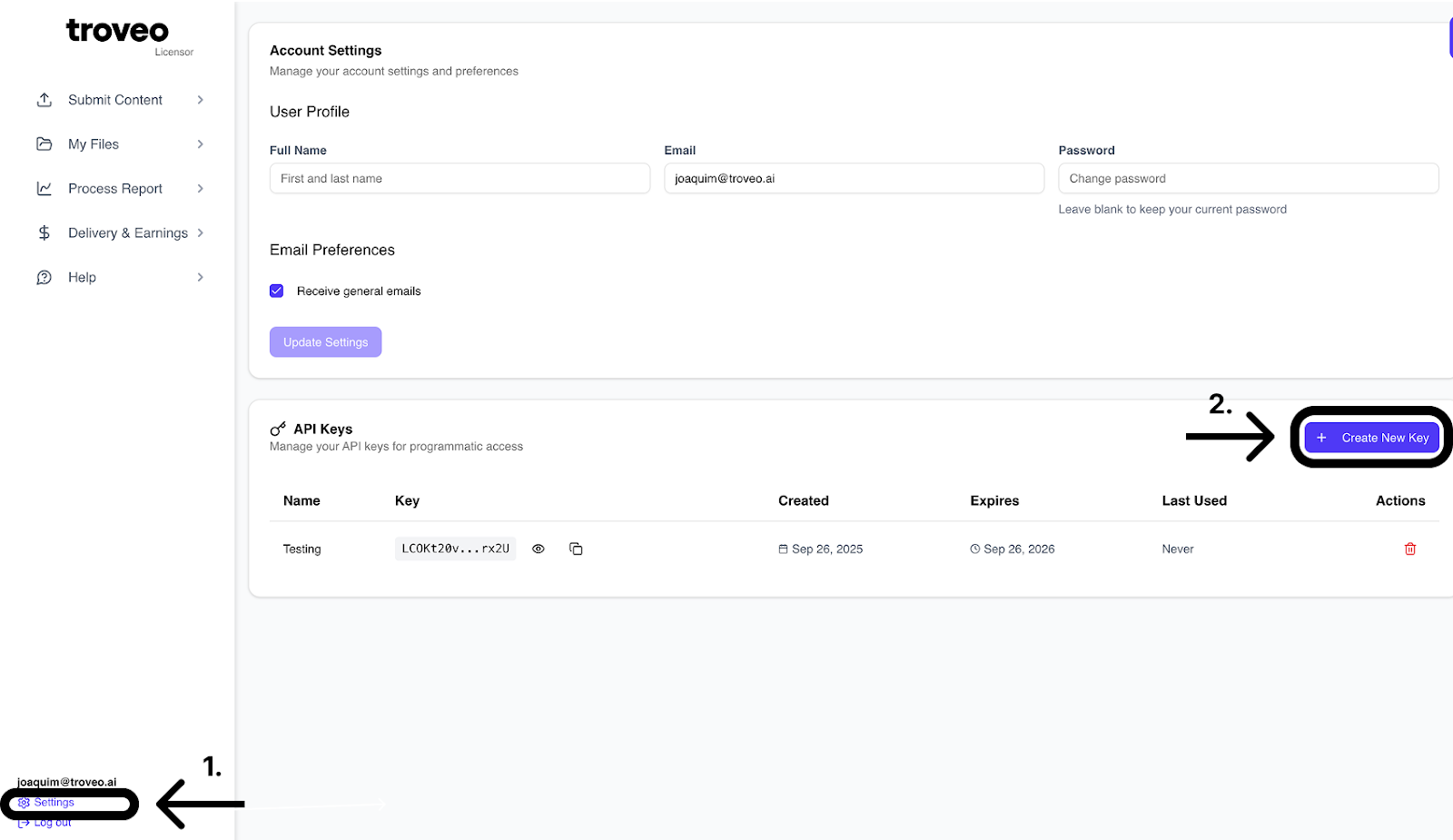
In your portal, go to Settings and create a new API key.
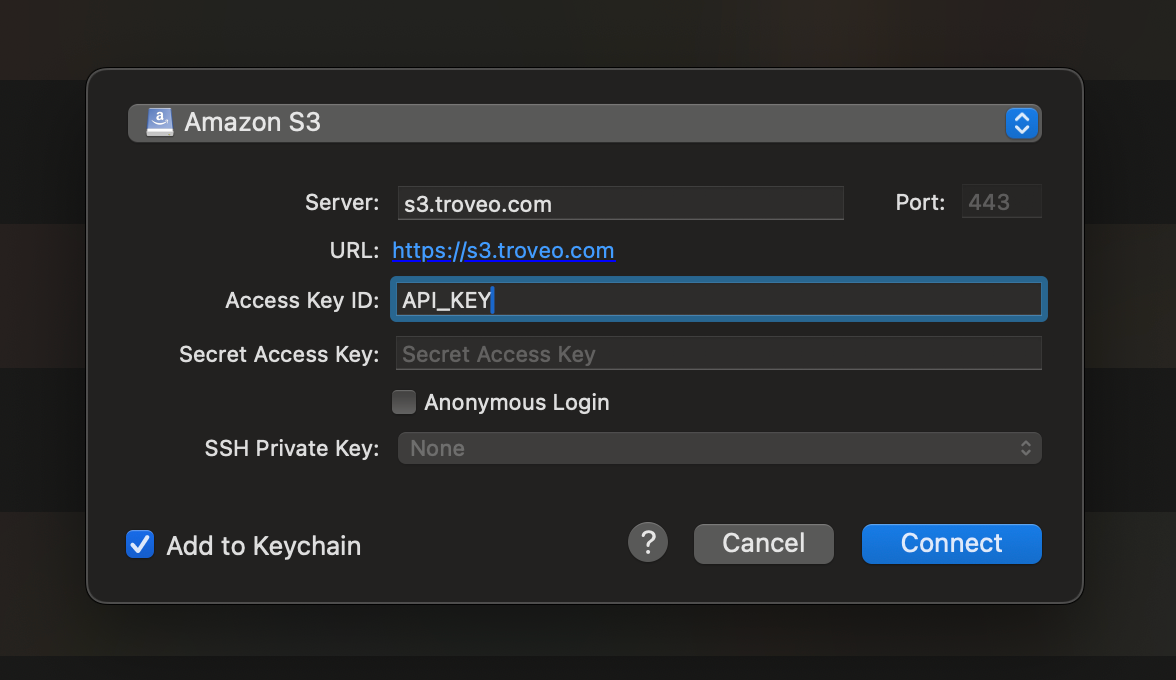
In Cyberduck, create a new Amazon S3 connection. When prompted, enter your Troveo API key in both the Access Key ID and Secret Access Key fields to authenticate.
Managing files
Once connected, you will see one directory (S3 bucket) for each licensor you have access to. These directories are named after the licensor.
Licensors will see a single directory.
Partners will see one directory for every licensor they manage.
Available operations
View and list uploaded files
Upload new files
Unavailable operations
Deleting files is not permitted. Once a file is uploaded, it cannot be removed.
Once you’re connected, you can start uploading files right from your preferred client. If something doesn’t look quite right—like missing folders or a connection error—double-check your API key settings in the Troveo portal or reach out to our support team. We’re happy to help.