Exporting YouTube videos via Google Takeout
Last updated: October 16, 2025
If you’re transferring your YouTube catalog or content library to Troveo, you’ll first need to export your data from Google. The easiest way to do this is through Google Takeout, which lets you download your YouTube data directly to Google Drive. Follow the steps below to create your export, generate shareable links, and upload them to your Troveo Portal.
Go to Google Takeout
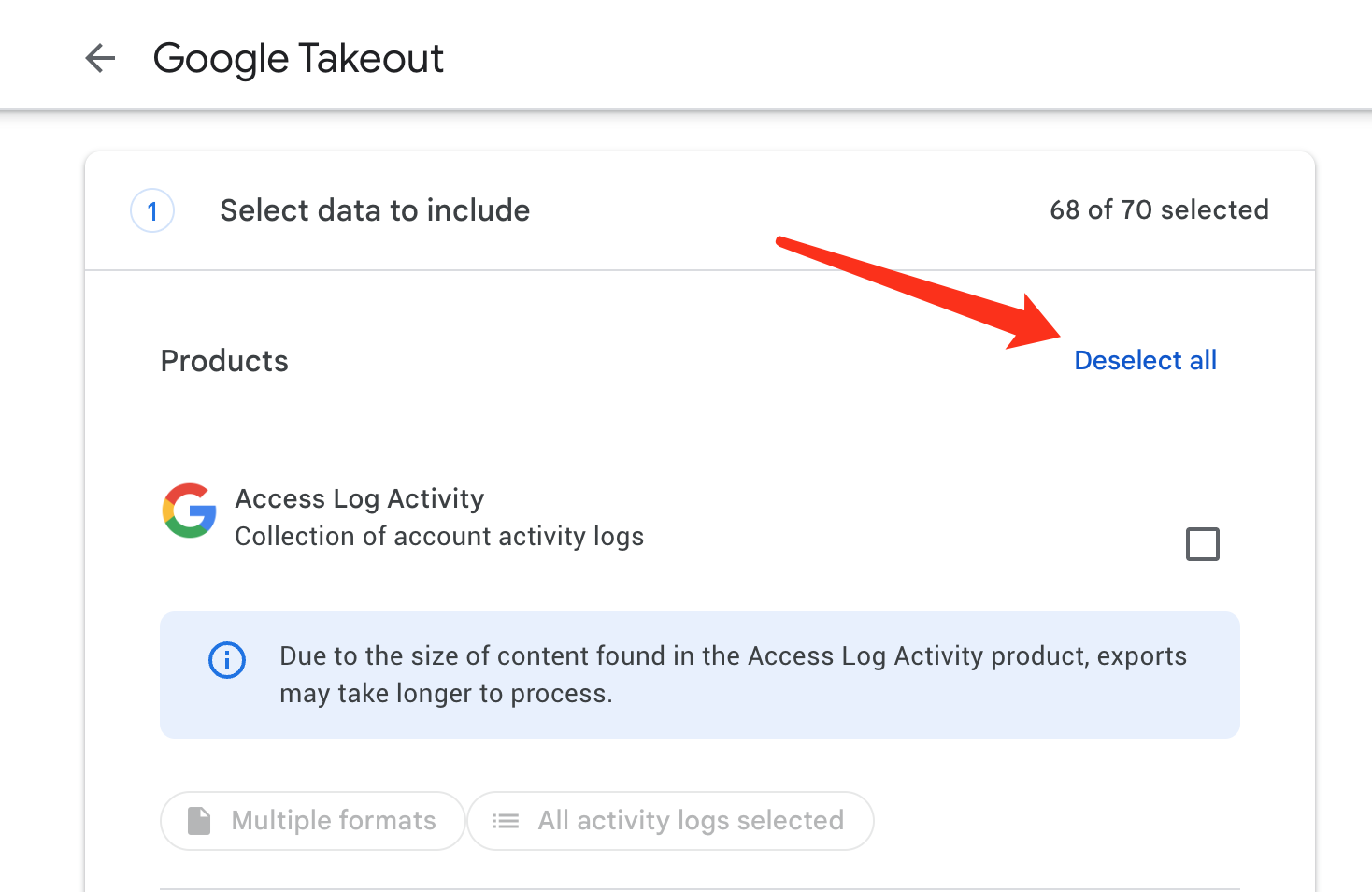
Select data to include
Click "Deselect all" at Products
Scroll down to the button
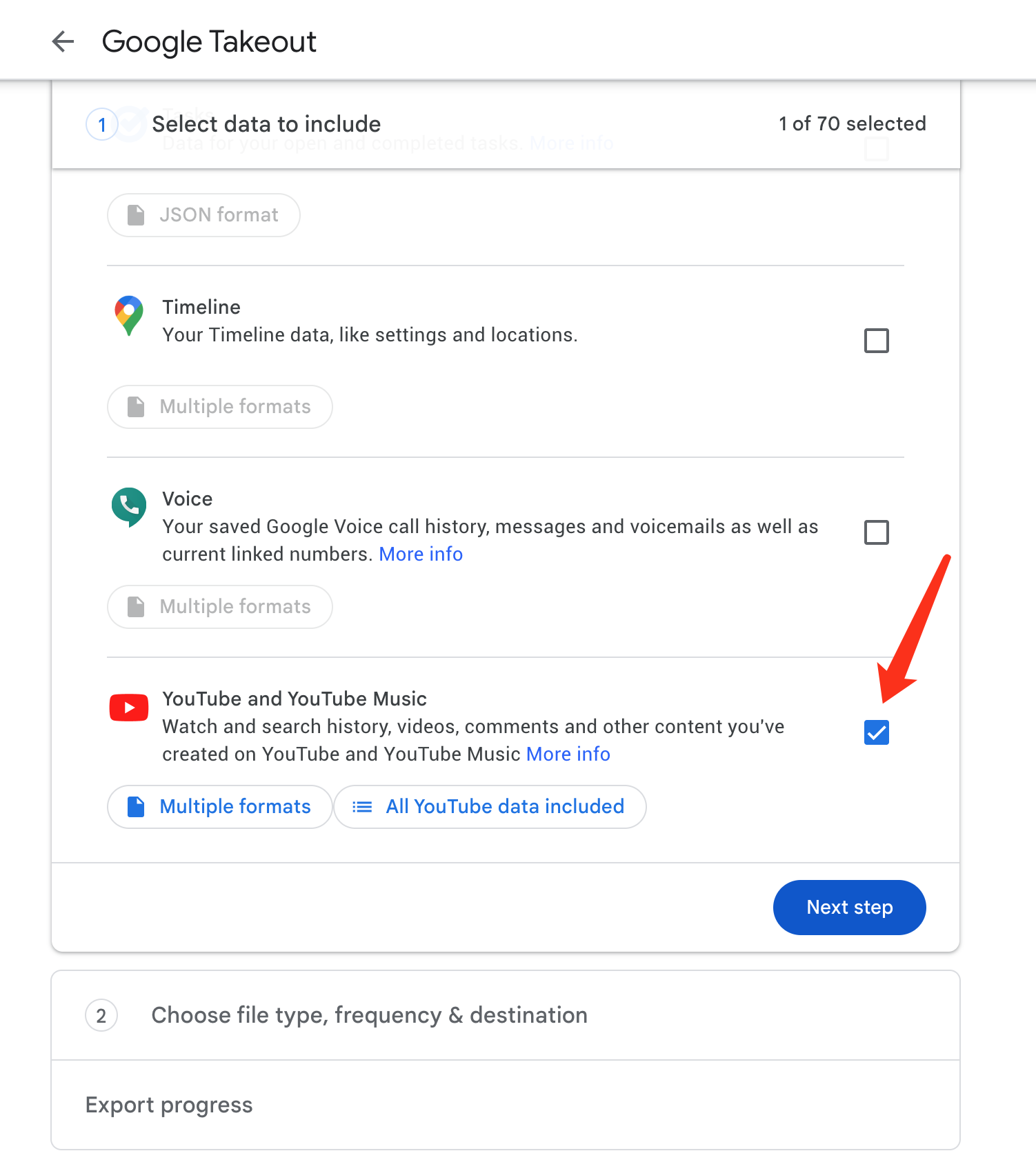
Select "YouTube and YouTube Music", then click "Next step"
Screenshots
Choose file type, frequency & destination
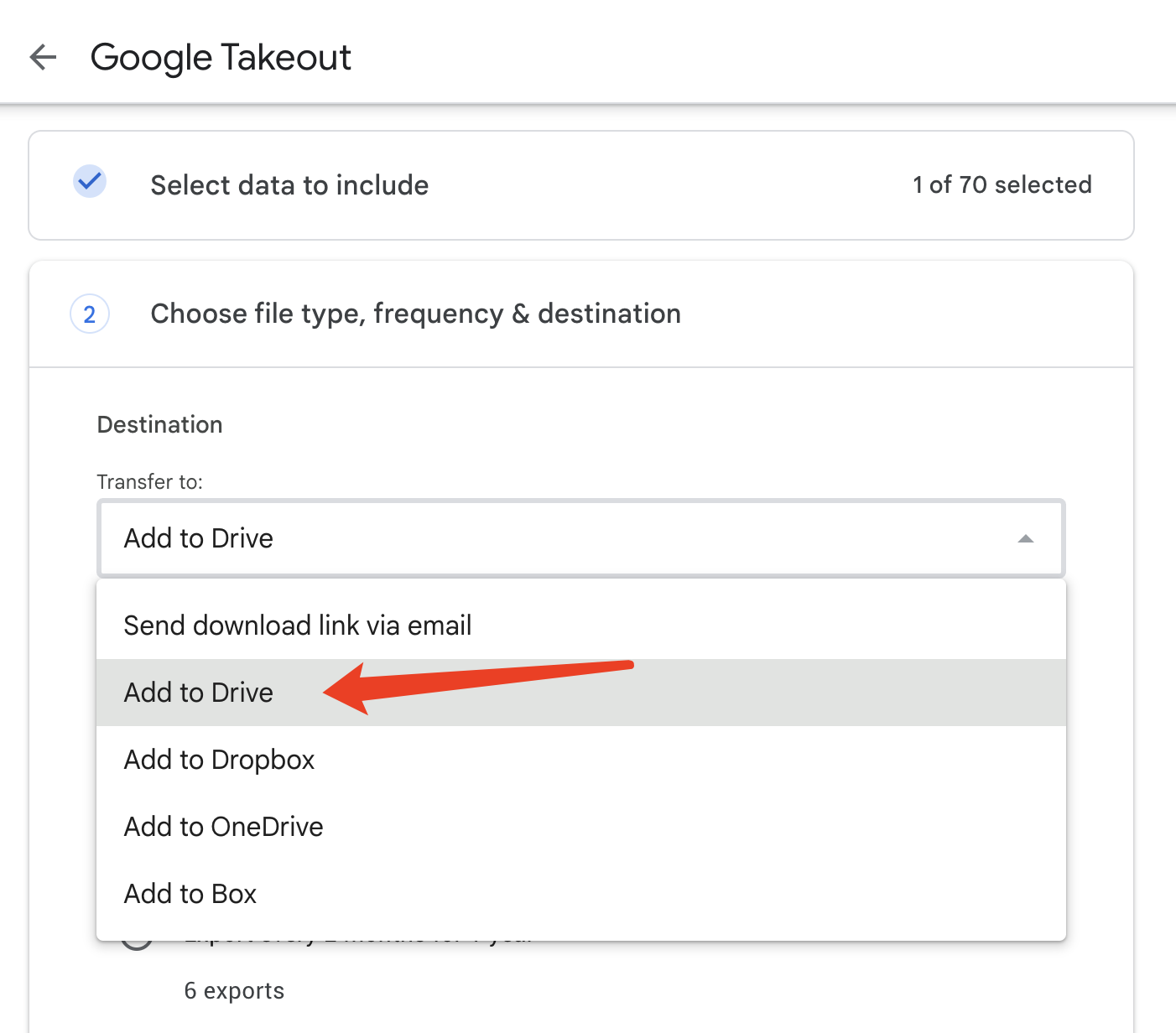
In the "Transfer to" Dropdown, select "Add to Drive"
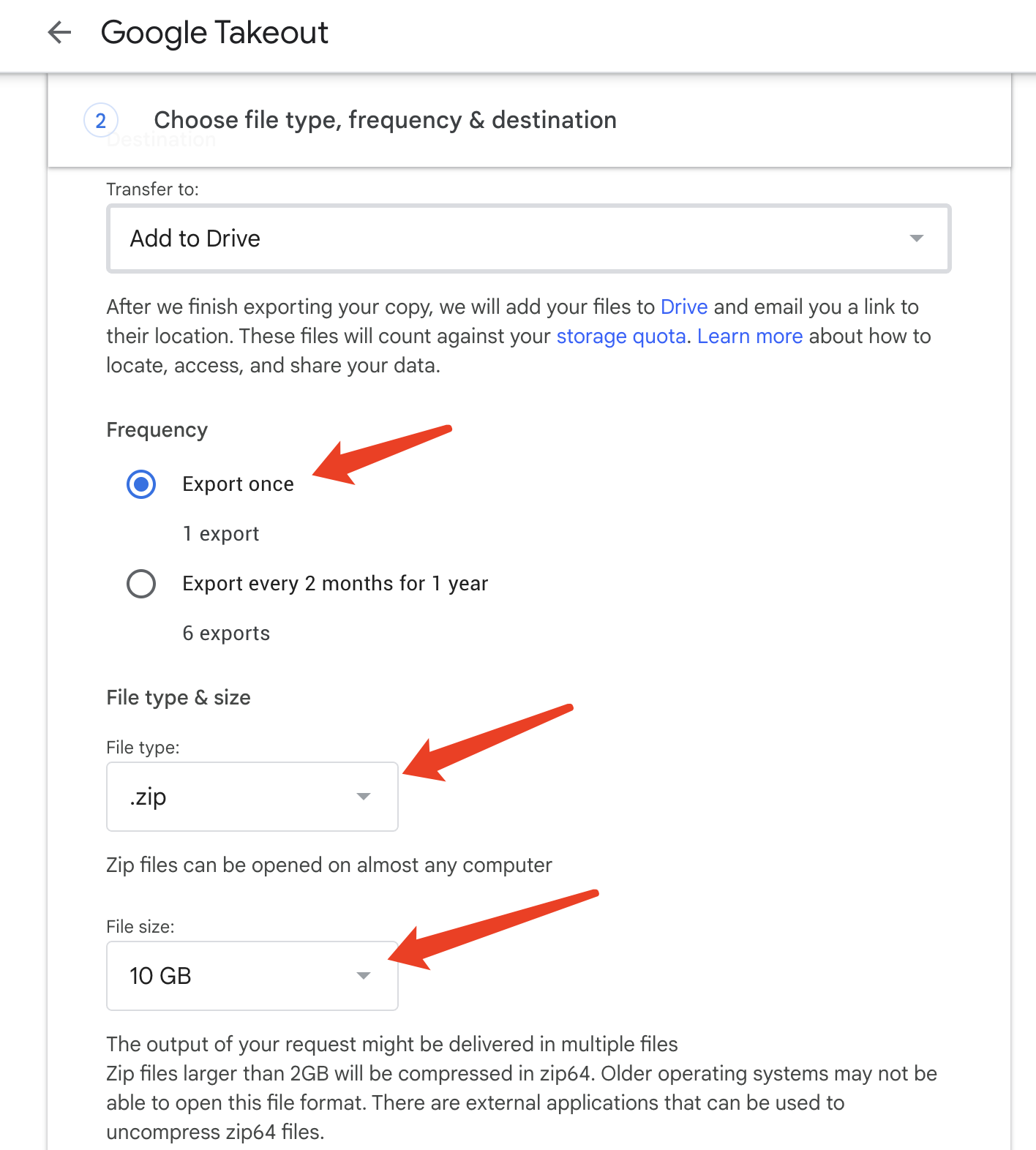
For "Frequency" select "Export once"
File type & size select ".zip" and "50GB"
Click "Create export"
Screenshots
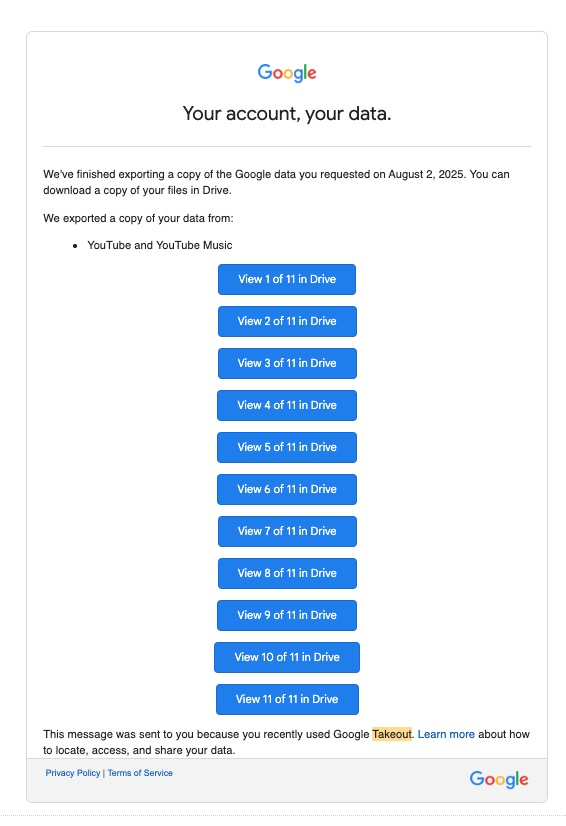
Wait for Google to prepare your data (this may take several hours or days), you will receive an email notification when it has completed
When the export has finished, you will receive an email, go to that email
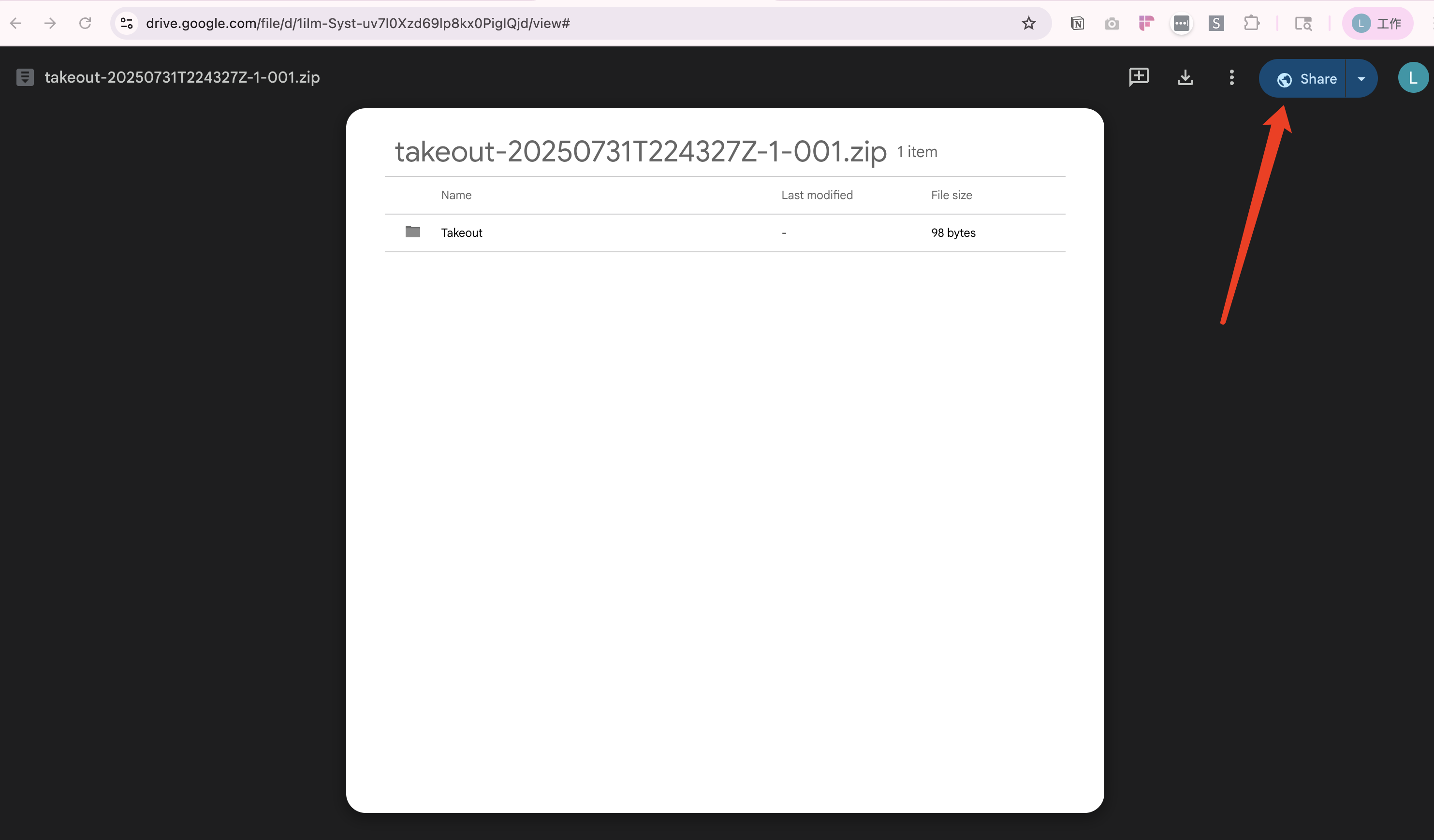
Click "View x of xx in Drive"
Click "Share" at top right
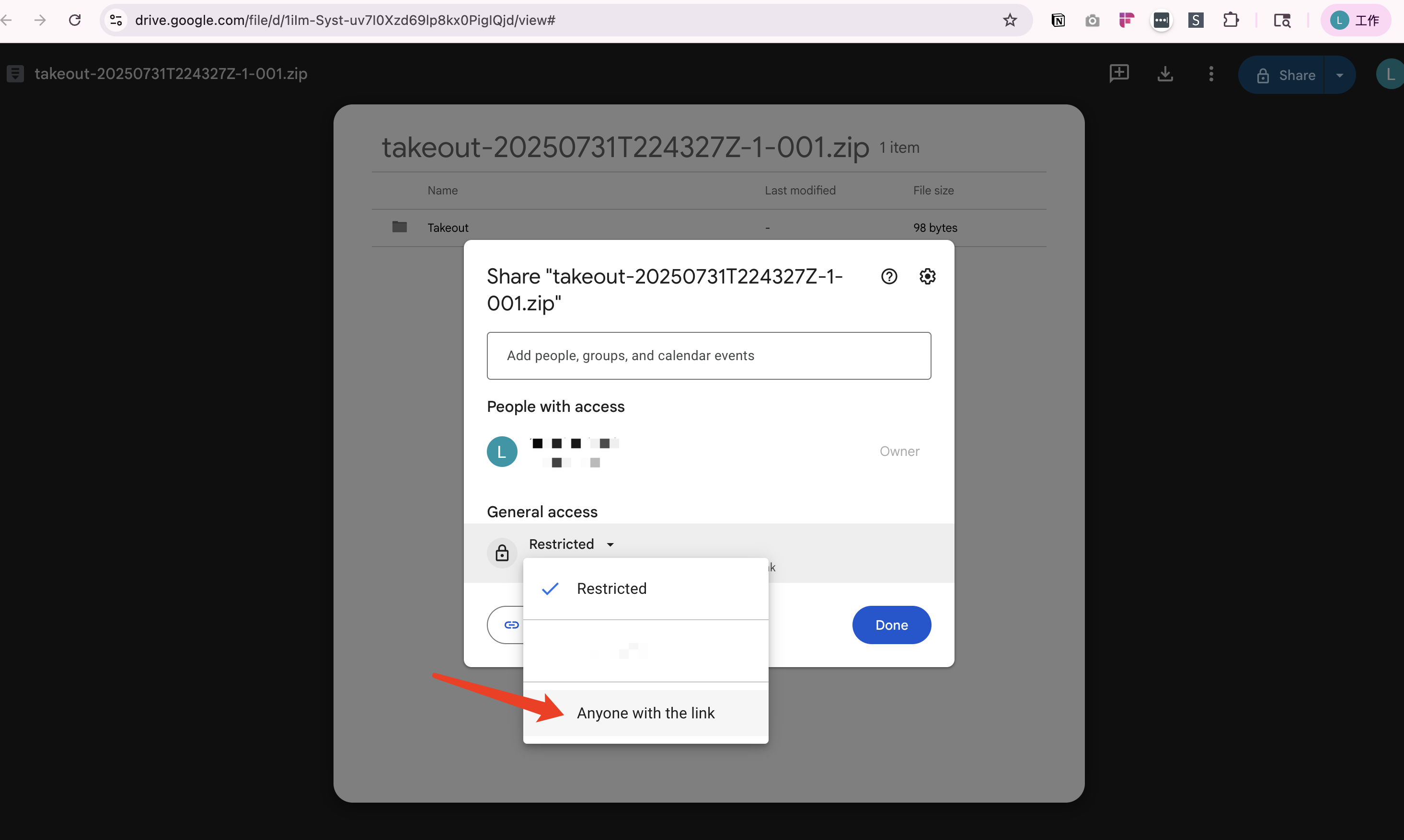
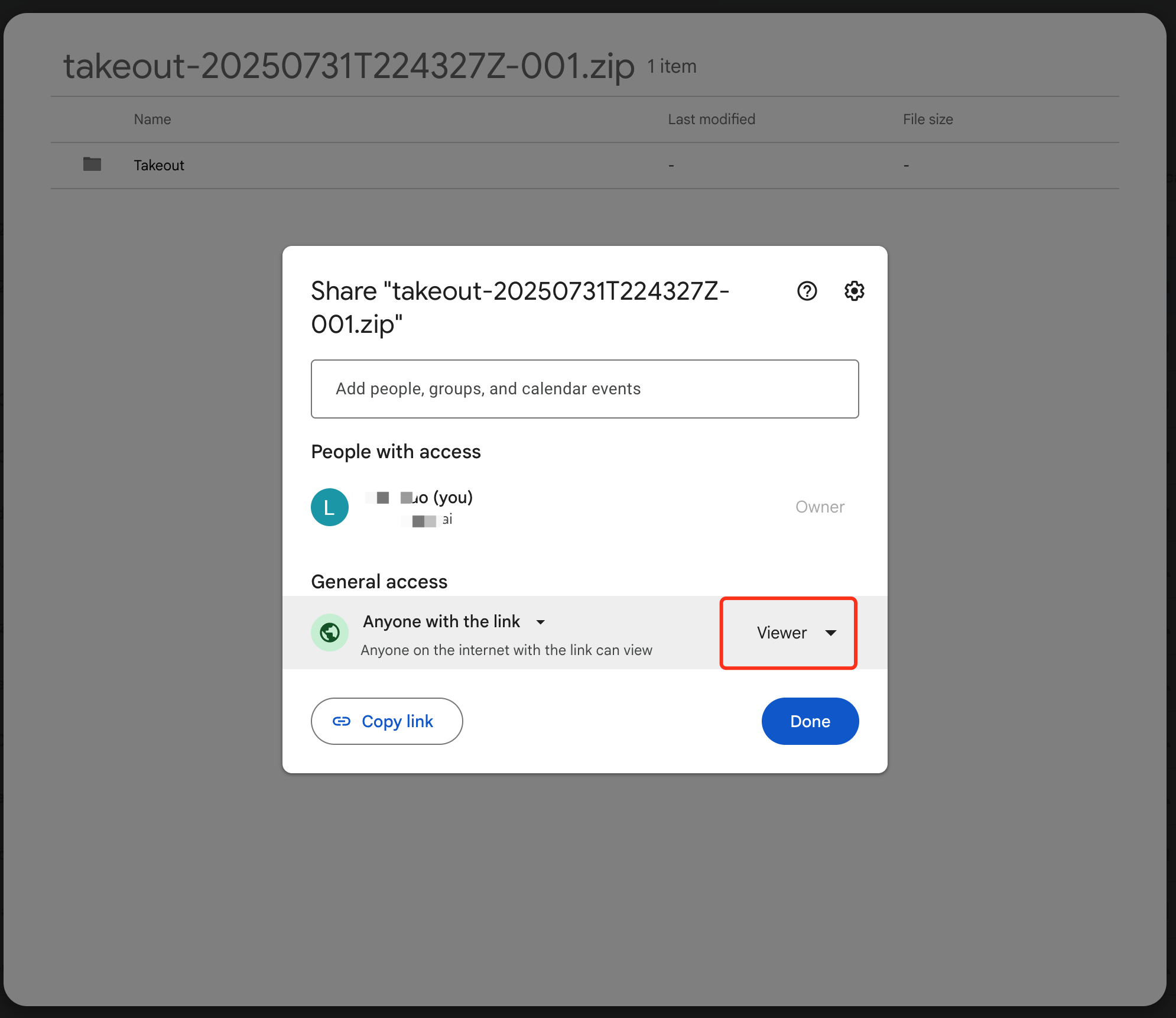
Under General access, toggle access to "Anyone with the link" and "Viewer" permissions.
Click "Copy link" (You may need to share multiple links if there are multiple exported files)
Paste it into Troveo Portal
Repeat to click all links, edit access and paste all links into Troveo Portal
Screenshots
Paste all exported links in the input box of Troveo user Portal, click "Start Uploads"
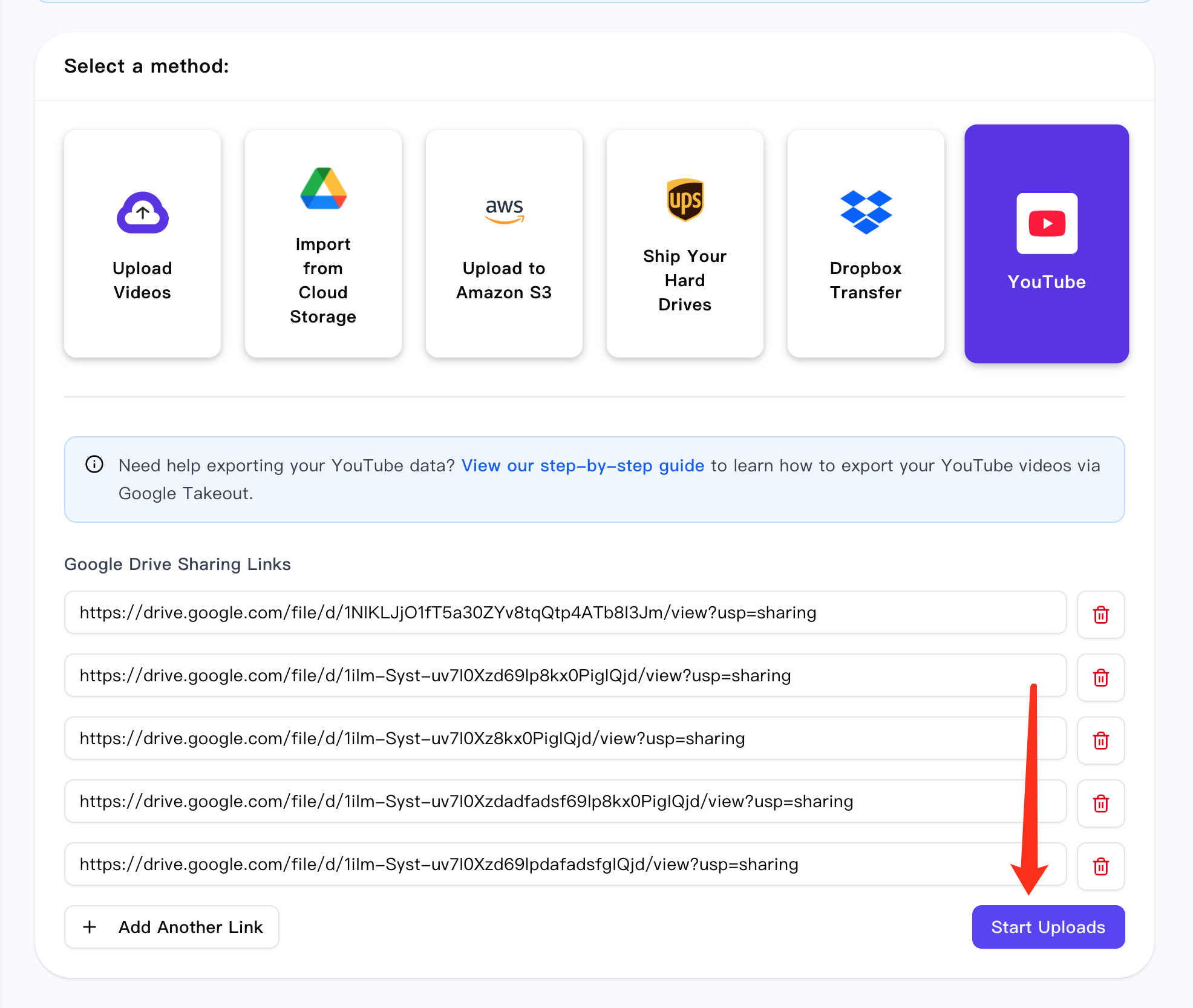
Once you’ve pasted all your exported links into your Troveo portal and started the upload, our system will take care of the rest.
If you run into any issues, please submit a support ticket and our team will be happy to help.